Furniture & Decor
Personalizing Your Project
Transform your structural layout into a home with the Zlendo Realty Furniture & Decoration library. Our extensive catalog offers thousands of items to help you style every inch of your space, from the living room to the backyard.
Adding Furniture
Adding furniture/decor items into your project is a simple “Drag and Drop” process.
How to Add Furtinure & Decor Items
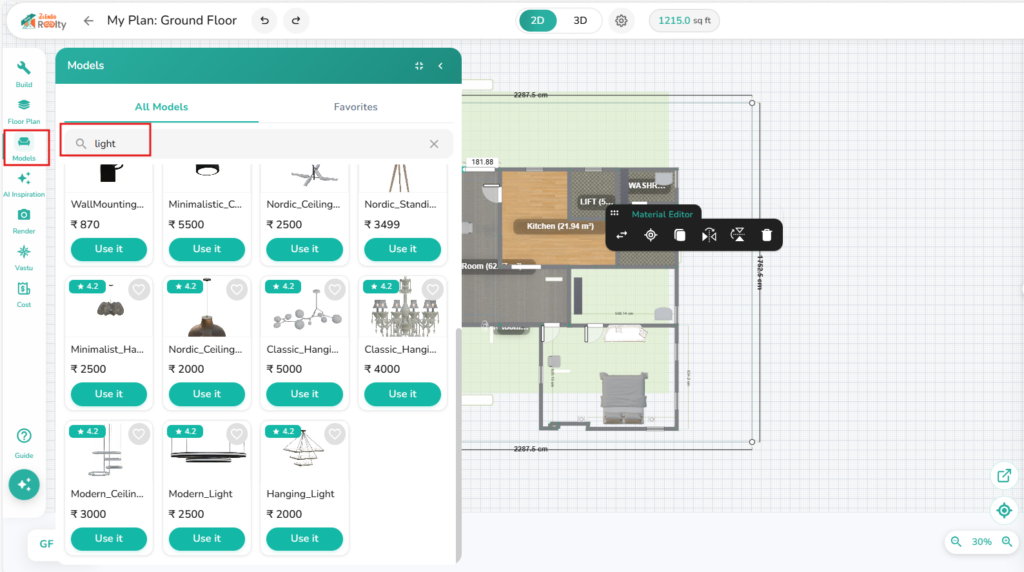
Workspace left side menu bar –> Models Icon (chair icon), to open the Furniture and Decor Catalog.
Select an item and drag it directly into the room/space you want to place it in.
Placement: Objects will automatically “snap” to the floor level or against walls for easy alignment.
Grid, Snap & Alignment of Objects
Any Furniture/Decor element added to a room has a Material Editor and tool bar. When it is placed in the space it will snap into position.
3D Mode –> Double click a piece of furniture to engage Snap Mode (unlock).
Use the guide arrows in snap mode to move a piece across the room or to turn it around.
Lock it in place: Click again to lock it in place. Or use the Material Editor mobile bar Lock icon.
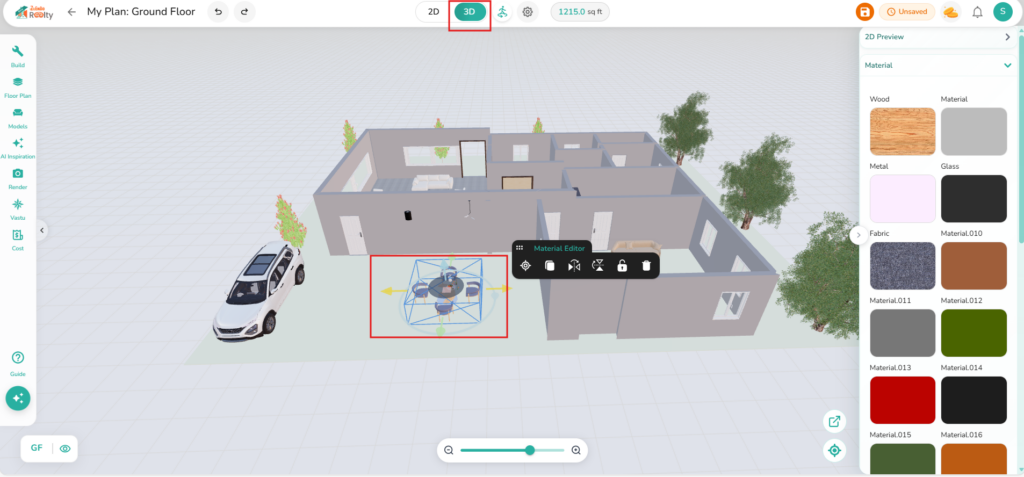
Edit Position Using the Material Editor
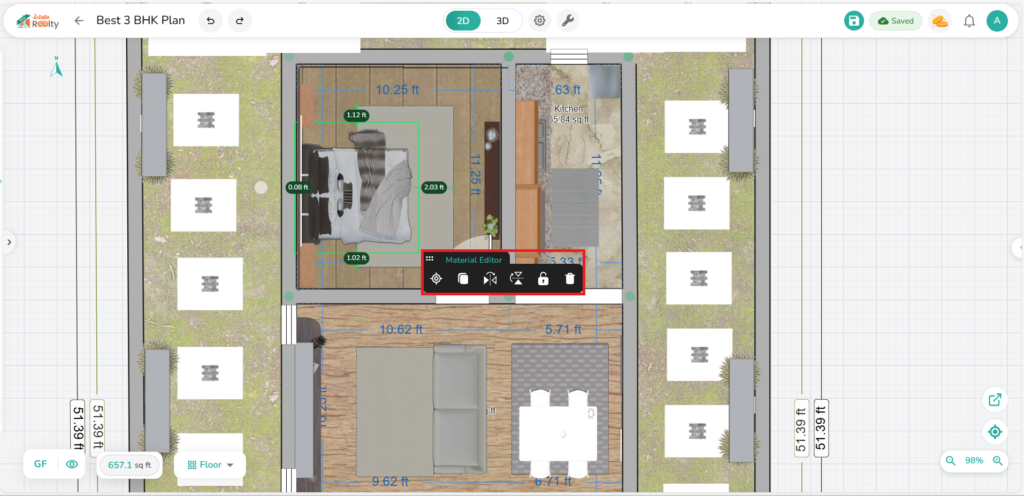
Position and lock the element can also be adjusted from the mobile Material Editor bar.
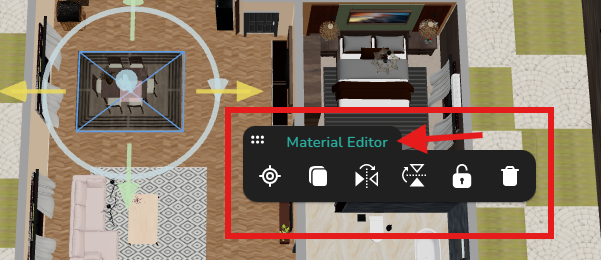
Click on the element/object to be edited –> Material Editor Mobile Tool Bar:
– Center
– Copy
– Flip (Horizontal/Vertical)
– Lock
– Delete
Editing Material Texture and Color
The Material Editor tool bar of any building element allows you to change the color/texture and look of building/furniture elements.
Click on the Material Editor to View the element’s/Objects material properties and edit its size, color and texture
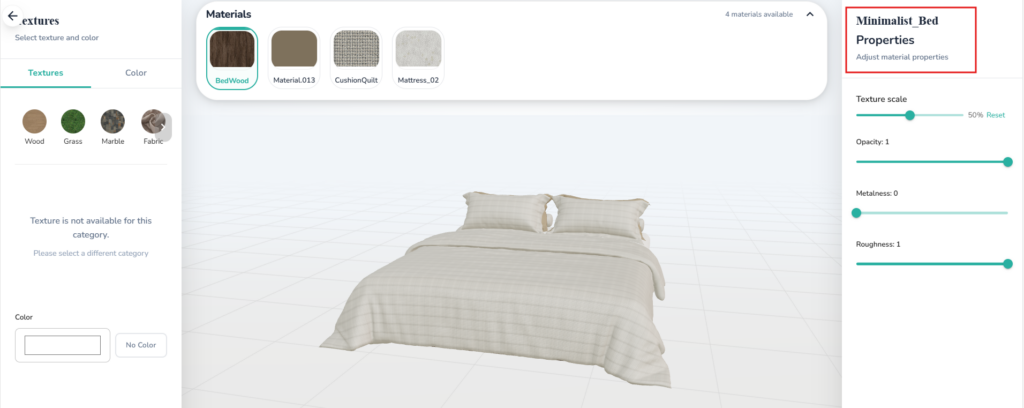
Finding the Model you want
Use Categories
To make browsing easier, our library is organized by room and function:
Interior: Living Room, Bedroom, Kitchen, etc.
Structural: Windows, Doors, and Stairs.
Decorative: Plants, Curtains, and Frames.
Use the Search & Favorites
Know exactly what you’re looking for? Save time with these tools:
Search Bar: Type keywords like “Sofa” or “Table” at the top of the catalog.
Favorites: Narrow down results by “hearting” your best finds to add them to your “Favorites” to find the perfect fit easily.
💡 Design Secret:
Use the Favorites (Heart) icon on items you love. This creates a curated shortlist, so you don’t have to search for that specific coffee table every time you start a new room.
Outdoor Furniture & Landscaping
Zlendo Realty isn’t just for interiors! Explore the Outdoor Category to find:
Models Library –> Outdoor & Garden category / Exterior category.
Garden Sets: Patios, loungers, and umbrellas.
Landscaping: Trees, shrubs, and pools to create a realistic exterior environment.
Lighting: Path lights and lanterns to see your garden in “Night Mode.”
Quick Guide to Customizing Your Furniture & Decor
Once an item is in your room, you can modify it to fit your exact specifications.
| Feature | How to Use |
| Removing and replacing Items | Select an object and click the Delete icon (bin). This lets you remove a chair or lamp and use a different model. |
| Scaling Objects | Select the item and use the Dimensions menu to manually enter height, width, and depth. (Note: Pro users can toggle “Uniform Scaling” to keep proportions locked). |
| Rotating & Positioning | Use the Rotation Handle (curved arrow) to spin the object. For precise positioning, use the arrow keys on your keyboard for “nudging.” |
| Change Material Texture/Colour | Select the item and use the Materials menu to select the texture or color of an object |
💡Decorating Tips
Layering: Start with “Heavy” items (Sofa, Bed, Wardrobe) before adding “Light” decor (Rugs, Lamps, Vases).
Wall Decor: When dragging art or mirrors near a wall, they will automatically orient themselves to face the center of the room.
Grouping: Use the Multi-select tool (Shift + Click) to move entire furniture sets (like a dining table and chairs) at once.
Need more help?
Can't find the answer you're looking for? Our team is here to help you.
Contact SupportRelated Articles
Export Plan & Floorplan Generator Tool
Export Plans Floorplan Generator Toolbar Current Floor Button: Quickly switch between different floors/levels of your project to view or export specific floors. Reset View & Zoom Icons: Use these to instantly reset your design or adjust the magnification for a detailed look. Style Selector: Customize the visual aesthetic of your plan by choosing from several…
Zlendo Realty Community: Creating Project Templates & Sharing Designs
The Zlendo Realty Community is a vibrant digital hub designed for architects, interior designers, and home enthusiasts to connect and grow. It serves as a collaborative space where creativity meets professional insight, allowing users to move beyond individual drafting and into a shared ecosystem of design. Sharing Design Templates Community –> Share Post –> Recent…
Payment & Billing
There are several ways to view the Plan cards and to Upgrade your current plan to a paid version. Steps to Upgrade 1. From the Zlendo Realty Dashboard On the Dashboard left-hand sidebar, click on the Plan tab. Alternatively, you can also click on: – the Upgrade Now button located in the promotional banner at…