Find & Manage Projects
Finding your Projects
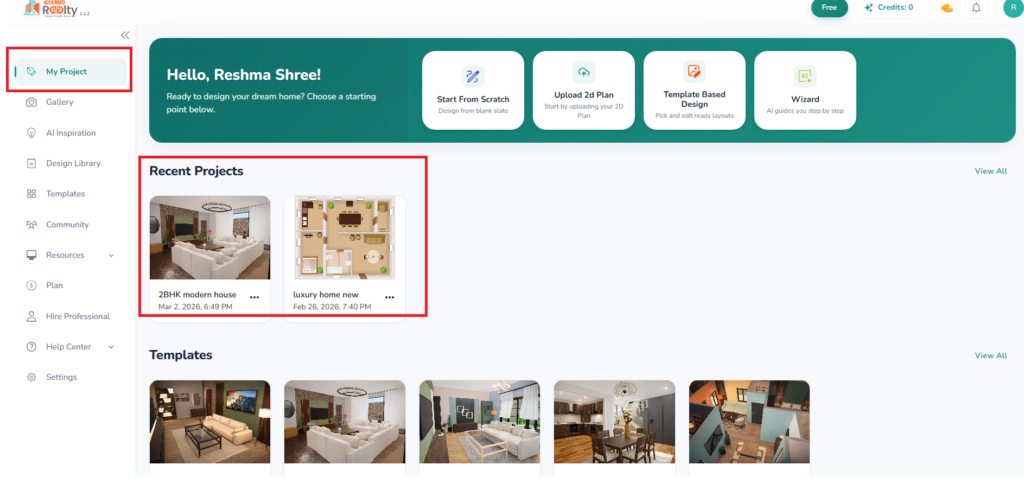
You will find your latest projects on the Dashboard My Projects section.
Dashboard –> My Projects –> Recent Projects
Managing your Projects
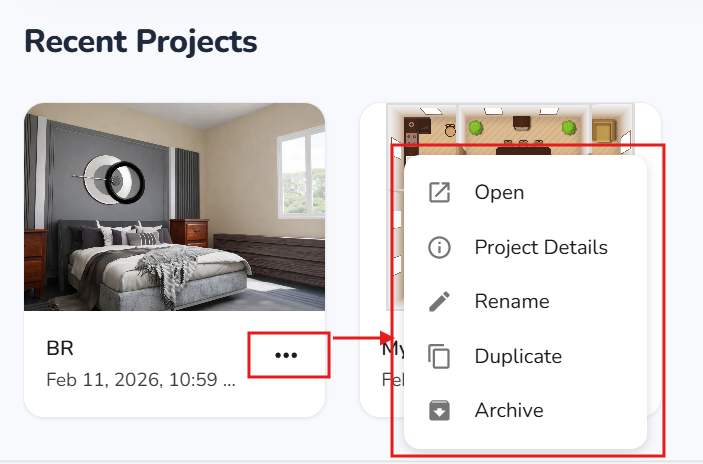
My Projects –> [Project Thumbnail] –> Manage your Projects
Click on the three dots at the bottom of the Project Thumbnail.
From the dropdown list choose the required action.
Project Details
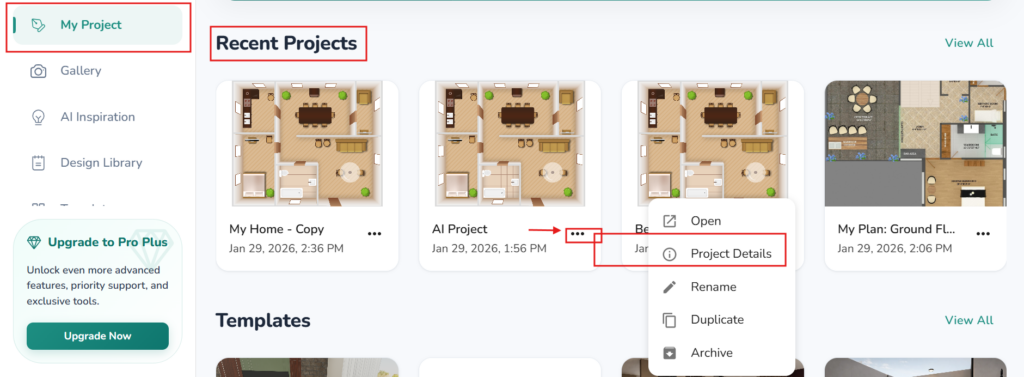
Project Thumbnail –> 3 Dots –> Project Details
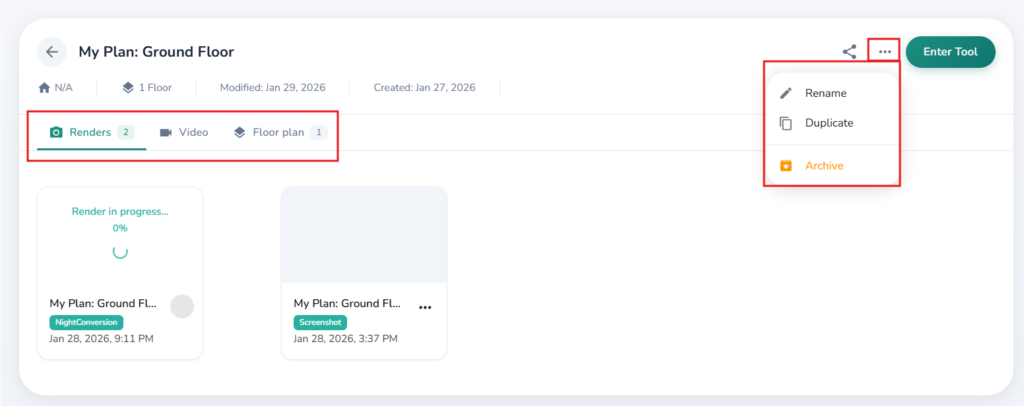
Click on the 3 dots under the project thumbnail.
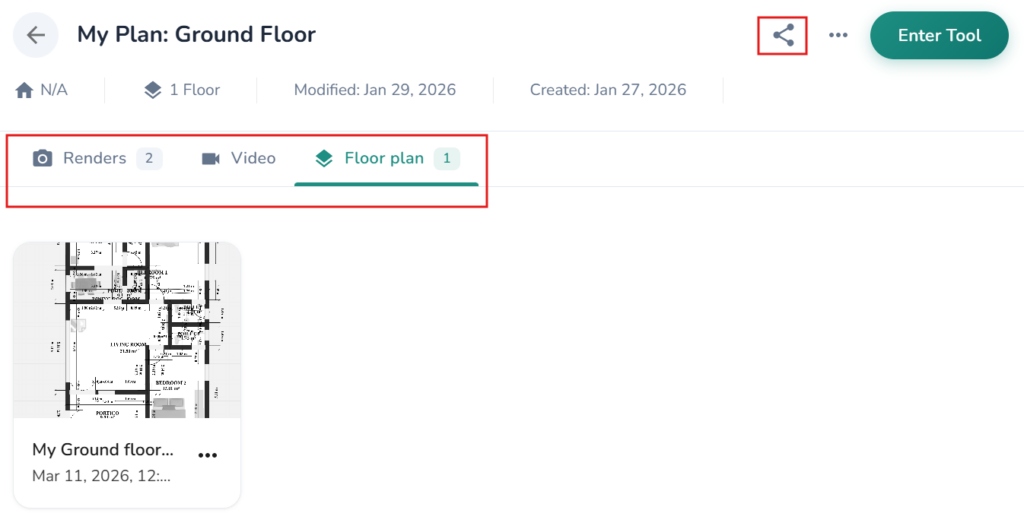
Click on Project Detials to:
– View your saved screenshots/Renders/Videos/Floorplans of the Project
– Edit the floor plan further – click on the Enter button
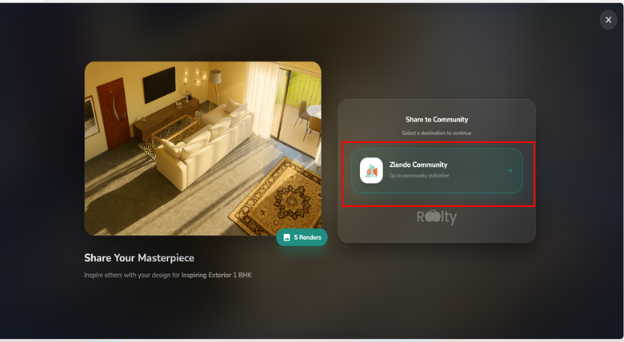
– Share the Project or Design Template the Zlendo Realty Community as a post: Click on the share icon
Read more about Creating a Design template and posting your designs to your Community here: “Creating & Sharing Project Templates“
Rename/Duplicate/Archive a Project
Project Thumbnail –> 3 Dots –> Rename/Duplicate/Archive
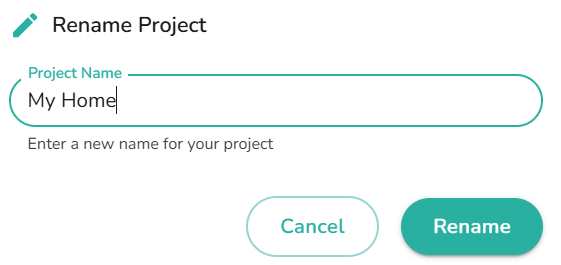
To change a Project name, Click Rename
– Fill out the new name in the pop-up box and save the action.
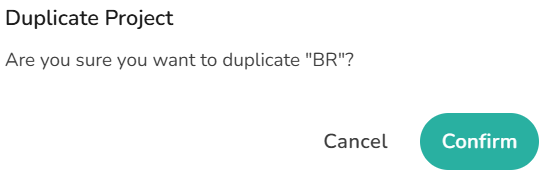
To Duplicate the Project, click on Duplicate and confirm and save the action.
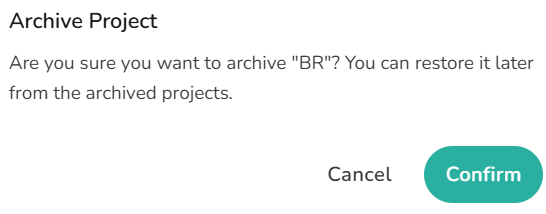
Archive a Project if you do not wish to view it in your Projects List.
– To archive a project, click on Archive and confirm your choice to save the action.
Unarchive a Project
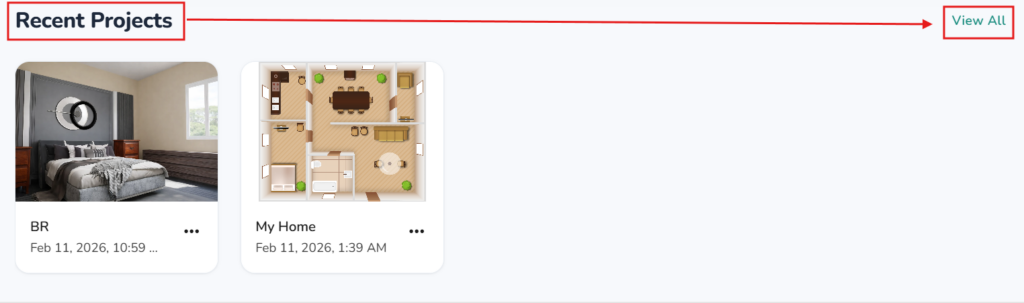
An Archived project will be removed from the Recent Projects view. However, it can be restored if you change your mind.
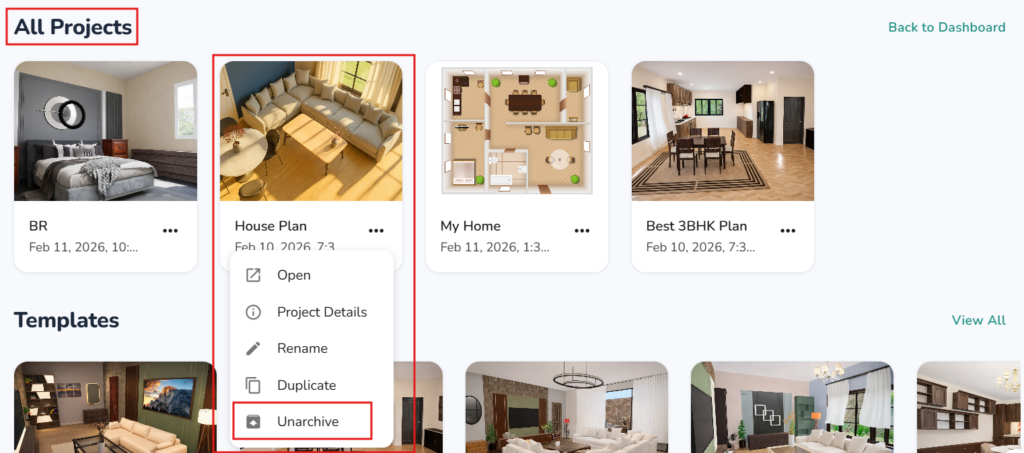
All projects created / archived can be viewed in the All Projects view.
Dashboard –> Recent Projects –> View All –> Unarchive
In the View All projects screen,
Click on the 3 dots under the Project thumbnail you want to Unarchive.
– From the dropdown menu Select Unarchive.
– The Unarchived project will show in My/Recent Projects section again.
Need more help?
Can't find the answer you're looking for? Our team is here to help you.
Contact SupportRelated Articles
Export Plan & Floorplan Generator Tool
Export Plans Floorplan Generator Toolbar Current Floor Button: Quickly switch between different floors/levels of your project to view or export specific floors. Reset View & Zoom Icons: Use these to instantly reset your design or adjust the magnification for a detailed look. Style Selector: Customize the visual aesthetic of your plan by choosing from several…
Zlendo Realty Community: Creating Project Templates & Sharing Designs
The Zlendo Realty Community is a vibrant digital hub designed for architects, interior designers, and home enthusiasts to connect and grow. It serves as a collaborative space where creativity meets professional insight, allowing users to move beyond individual drafting and into a shared ecosystem of design. Sharing Design Templates Community –> Share Post –> Recent…
Payment & Billing
There are several ways to view the Plan cards and to Upgrade your current plan to a paid version. Steps to Upgrade 1. From the Zlendo Realty Dashboard On the Dashboard left-hand sidebar, click on the Plan tab. Alternatively, you can also click on: – the Upgrade Now button located in the promotional banner at…